
Guide to OBD Remote Programming for Hyundai IX35 By CGDI K2 and CGDI A2
Learn how to program a Hyundai IX35 2018+ smart key using the CGDI K2 and A2 adapter via OBD. Follow this non-disassembly step-by-step key programming guide.
 Saqib Haleem Abbasi
Share this Post to earn Money ( Upto ₹100 per 1000 Views )
Introduction
With the rapid development of automotive electronics, key programming methods for modern vehicles have gradually shifted from traditional chip reading and removal to more efficient OBD-based non-disassembly operations. For Hyundai IX35 models from 2018 onwards, leveraging the combination of the CGDI K2 handheld car key programmer and the CGDI A2 adapter enables fully non-intrusive remote programming simply via the OBD port. This article details the entire workflow of this combined operation, helping automotive locksmiths and technicians efficiently complete key matching for the IX35.
1. Device Overview and Preparation
1.1 CGDI K2 — Multi-Function Remote key programmer
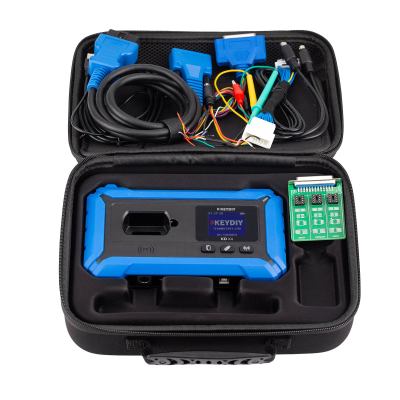
The CGDI K2 is a handheld programming tool that integrates remote generation, cloning, unlocking and restoring, frequency detection, and chip identification. It supports wired/wireless generation of remote controls and smart keys, features a built-in induction coil for chip reading and writing, and includes MCU programming capabilities. In the context of remote programming for the Hyundai IX35, the core role of the K2 is to handle smart key generation and chip data processing.
Before first use, complete the following preparations:
- Long-press the power button to turn on, connect to Wi-Fi to activate the device, and update the firmware to the latest version.
- Log in or register a CG account (a universal account for all CG series products).
- Use a 5V/1A adapter to charge the device via the Type-C port, ensuring sufficient battery level.
1.2 CGDI A2 — OBD Remote Programming Adapter
The CGDI A2 is an OBD interface adapter used in conjunction with the K2, responsible for establishing a communication bridge between the vehicle and the programming device. By connecting the A2 to the vehicle's OBD port, the K2 can directly read the vehicle's immobilizer system data without disassembling the body control module or immobilizer box, truly achieving "plug-and-program" functionality.
1.3 Vehicle Compatibility Confirmation
According to the latest update log for the CGDI series (with the CG201 sharing the same platform as the K2), version V1.08 explicitly supports the smart key system for Hyundai IX35 models from 2018 onward. Before operating, confirm the vehicle's model year and key type (smart card/smart key) to ensure it falls within the device's support list.
2. Detailed Operation Procedure
Step 1: Vehicle and Device Connection
Locate the OBD diagnostic port on the Hyundai IX35 (usually under the driver's side dashboard).
Insert the CGDI A2 into the OBD port, ensuring a solid connection.
Power on the CGDI K2 and establish a communication link with the A2 via Bluetooth or Wi-Fi.
Step 2: Reading Vehicle Immobilizer Data
On the K2 main interface, enter the corresponding function module (select "Immobilizer Programming" or "OBD Programming" according to the device menu).
Select vehicle type: Hyundai → IX35 → 2018+ Smart Key System.
The K2 will read the vehicle's immobilizer password and key data through the A2. This process requires a stable network connection.
Follow the on-screen prompts to complete data reading and backup.
Step 3: Generating the Smart Key
Return to the K2 main interface, select [Remote Generation] → [Smart Remote].
Select the corresponding vehicle model: Hyundai IX35 Smart Card.
Place the new CG smart key on the induction coil at the top of the K2 device.
Click "Generate Remote" and confirm, waiting for the progress bar to complete.
Upon successful generation, the K2 will indicate that the writing process is complete.
Step 4: Key Matching and Verification
After generation, use the A2 to write the new key ID into the vehicle's immobilizer system.
Follow the on-screen instructions on the K2, and within the specified time, hold the smart key close to the start button to complete the induction matching process.
Test the new key's functions: unlocking, locking, and starting the vehicle.
If the original keys are available, it is recommended to verify that all existing keys function properly as well.
3. Common Issues and Precautions
3.1 Network Requirements
OBD remote programming relies on CG servers for data exchange. A stable Wi-Fi connection must be maintained for the K2 throughout the entire operation. Network interruptions can lead to programming failures or even loss of immobilizer data.
3.2 Battery Level Assurance
The K2 will automatically shut down when the battery drops below 5%. The risk of a power interruption during the programming process is significant. It is highly recommended to fully charge the device before starting and connect the charger as a backup power source.
3.3 Version Updates
Before performing any programming, make sure to update the K2's software and firmware to the latest version under a Wi-Fi environment to ensure optimal compatibility with the IX35 model.
3.4 Key Type Matching
When generating a smart key, it's crucial to confirm that the blank key being used matches the frequency and chip type of the original IX35 key. You can verify the original key's chip information using the K2's [Chip Identification] function. As a professional key programmer, the K2 handles these nuances efficiently.
3.5 Handling Operation Failures
If the initial matching attempt fails:
- Check if the connection between the A2 and the OBD port is loose.
- Confirm the vehicle's battery voltage is normal (ideally above 12V).
- Try re-reading the vehicle data before attempting matching again.
- If the issue persists, contact CGDI official technical support.
4. Summary of Key Operation Points
The core advantage of using the CGDI K2 with the CGDI A2 for remote programming on the Hyundai IX35 lies in its non-disassembly approach — no need to remove the body computer or solder any chips for reading; the entire process is completed via the OBD port. This significantly reduces the operational difficulty and risk of damage, thereby improving work efficiency.
Key Steps Recap:
- Device Update: Ensure the K2 firmware is the latest version.
- Stable Connection: Securely insert the A2 into the OBD port and keep the K2 connected to Wi-Fi.
- Standardized Generation: Correctly place the blank key on the K2's sensing area for generation.
- Timely Matching: Immediately complete the vehicle-side matching via OBD after key generation.
- Comprehensive Testing: Verify all functions of the new key.
For automotive locksmiths, mastering the operation of this combined tool set not only enhances service capabilities for the Hyundai IX35 but can also be extended to other supported Korean and American vehicle makes, maximizing the return on investment from this versatile piece of equipment.