
EML to Gmail Converter – Move Emails Seamlessly with Secure Conversion
You can easily move EML emails to Gmail by hand or with a secure, fast converter. The converter retains attachments and formatting and lets you move many emails at once.
 Patricia David
Share this Post to earn Money ( Upto ₹100 per 1000 Views )
It can be hard to keep track of emails occasionally. You can save essential emails as EML files, but it seems hard to get to them in Gmail. Many email clients use EML emails, and if you don't have the correct application, it can be hard to move them to Gmail. Fortunately, there is a quick, easy, and safe way to do this. You can quickly move your emails without losing any data using the EML to Gmail Converter.
Why Move Emails to Gmail?
One of the most popular email services in the world is Gmail. You can get to it from any device. It keeps your emails safe and in order. A lot of people desire to move emails from desktop email clients or backup files into Gmail. But Gmail doesn't natively support EML files. This is when a tool that converts comes in handy. You can easily import your EML emails into Gmail with the right converter.
Manual Method to Move EML Emails to Gmail
You can do it by hand if you don't want to use a tool. It works OK for small volumes of email, but you have to do a few extra things. Follow these easy steps:
- Set up an email client
You need an email application that can open EML data. A lot of people use Thunderbird for free. After you download Thunderbird, install it on your computer. - Import EML files into Thunderbird
Start Thunderbird and make a new folder. Put your EML emails in this folder. Check to see that all the emails were imported appropriately. - How to Set Up Gmail in Thunderbird
Use IMAP to add your Gmail account to Thunderbird. With IMAP, your emails stay in sync with Gmail online. - Transfer Emails to Gmail
Select all the emails in your Thunderbird folder. You can drag and drop them into your Gmail inbox or any other Gmail folder. The emails will start to sync. This could take a while, depending on how many emails there are. - Look at Gmail
Open Gmail on your web browser and make sure you can see all of your emails. Check your Gmail settings to make sure IMAP is turned on if you are missing any emails.
This manual method works, but it can take a long time. You also need to check that your internet connection is reliable. A professional tool is faster and more dependable for larger email collections.
Quick and Safe Way to EML to Gmail Conversion
The Softaken EML to Gmail Converter safely moves EML emails to Gmail. It keeps attachments, formatting, and other email features. Batch conversion, rapid migration, a user-friendly interface, and compatibility with all Gmail accounts are some of the features that make email transfer safe, organized, and easy with just a few clicks.
- It works with all kinds of EML files.
- You can bring in more than one EML file at a time.
- The tool keeps all the parts of the email the same. This includes email headers, attachments, and the original formatting.
- It works with every version of Windows.
- To begin, all you need is your Gmail login information.
How to Use
- Get the tool and install it.
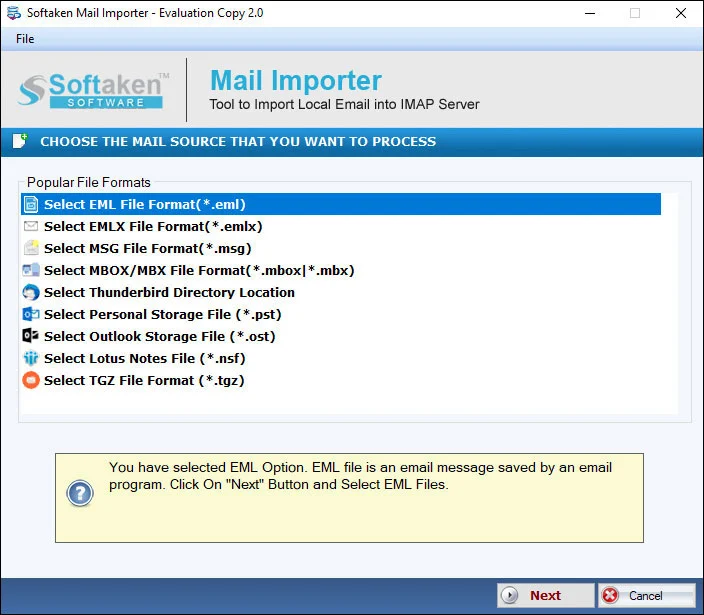
- Start the application. Choose "Add Files" or "Add Folder."
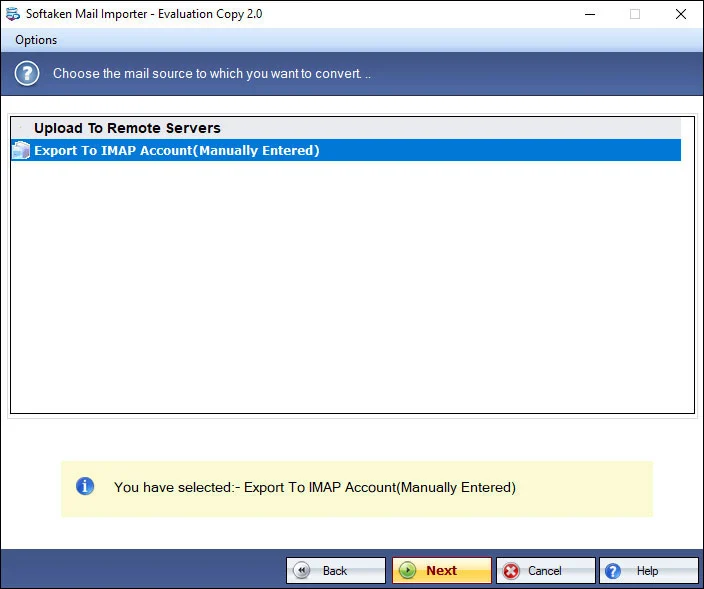
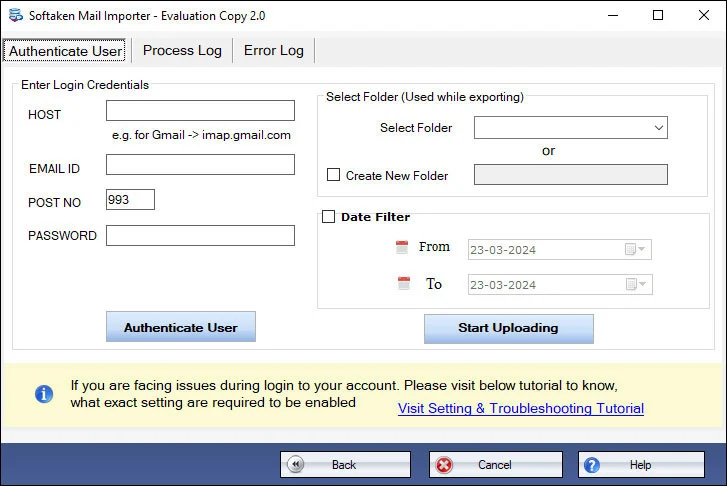
- Put your Gmail ID and password into the application.
- Press the "Convert" or "Start" button.
Advantages of Using Software
You can trust and use the tool safely. These are some of the benefits:
- Saves time: You can import hundreds of emails in just a few minutes.
- No Data Loss: Protects email characteristics and attachments.
- Easy to Use: Steps that are easy to follow, even if you don't know much about technology.
- Compatibility: Works with all versions of Windows and all Gmail accounts.
- Safe Conversion: Your login information is safe.
This application is useful for both corporations and home users. It lowers tension and makes the switch to Gmail go more smoothly.
Tips for a Smooth Email Migration
Here are some ideas to make sure everything runs properly, even with the software:
- Make sure your internet connection is reliable.
- Make sure Gmail has enough space.
- Use the most recent version of the tool.
- Make copies of your EML data before you start the conversion.
- Check the emails you imported after the process.
If you follow these recommendations, your move will go smoothly and safely.
Conclusion
It doesn't have to be hard to convert emails from EML files to Gmail anymore. If you simply have a few emails, you can choose to do it by hand. The EML to Gmail Converter is the best alternative for bigger collections or quicker results. It's safe, quick, and simple to use. This application lets you read all of your Gmail emails without any hassle. Use Software today and experience easy email management.