
Step-by-Step Instructions to Import EML Folders in Thunderbird
In this article, we will discuss how to import EML files into the MBOX-supported Thunderbird email client
 charlottemiller
Share this Post to earn Money ( Upto ₹100 per 1000 Views )

The process of managing and moving emails can be difficult, particularly when switching between different email clients simultaneously. This instruction is for you if you want to access EML files that you have stored in Windows Live Mail, Outlook Express, or any other platform and you want to do it in Mozilla Thunderbird.
There is no native support for direct folder-based EML imports in Thunderbird, which is a free and open-source email client developed by Mozilla Foundation. Workarounds are available, and even more intelligent solutions can be found by utilizing tools such as the DataVare EML to MBOX Converter. These tools have the potential to streamline the entire process, particularly when dealing with huge batches of emails.
Why Import EML Files into Thunderbird?
EML files are individual email message files that are utilized by a variety of email systems such as Windows Live Mail, Apple Mail, and older versions of Outlook Express. It is important to import these files if you are moving to Thunderbird since it ensures:
• The ability to quickly view ancient email archives
• Management of messages that is centralized
• Support for several operating systems
• Maintaining the formatting, attachments, and information of the document
Method 1: Use ImportExportTools NG extension for Thunderbird
Steps to Import EML Files:
Step 1: Install Thunderbird
Download the Mozilla Thunderbird software from the official website of Mozilla if it has not already been installed.
Step 2: Install ImportExportTools NG
1. Please launch Thunderbird.
2. Navigate to the Menu (☰) and select Add-ons and Themes.
3. To find "ImportExportTools NG," conduct a search.
4. Then, confirm the prompt by clicking the Add to Thunderbird button.
5. To activate the extension, you will need to restart Thunderbird.
Step 3: Preparing Your Folder
In order to save the imported emails, you will need to create a folder in Thunderbird:
1. To access your email account, right-click on it (located in the left panel).
2. After selecting New Folder, give it a name (for example, "Old Mails"), and then select Create Folder.
Step 4: Import EML Files
1. Select the newly formed folder by right-clicking on it.
2. In order to import all messages from a directory, navigate to ImportExportTools NG and then import them from the directory's subdirectories as well.
3. To access your folder that contains.eml files, navigate to it and pick it.
4. Select the Open button.
The importation of your mails into Thunderbird has now been completed.
Some of the Limitations of Manual Methods
Even though this strategy is effective for more modest imports, it does have a few drawbacks:
1. For large folders, it is a laborious and time-consuming process.
2. You might not be able to maintain the folder hierarchy.
3. If the metadata is absent, it may result in the corruption of the file
Method 2: Smart Solution to Import EML Folders in Thunderbird
Using a professional application such as DataVare EML to MBOX Converter is a solution that is more efficient and dependable for users who are dealing with a large number of EML files or entire email folders. This piece of software was developed with the express purpose of converting large quantities of EML files into the MBOX format, which is supported in its entirety by Thunderbird. In contrast to manual techniques, it maintains the entirety of the email structure, including attachments, formatting, metadata, and header information. Users are able to choose folders that contain EML files with ease, convert those folders using batch mode, and then import the resulting MBOX file directly into Thunderbird. The requirement for additional plugins is removed, and the possibility of data loss is decreased as a result.
How to Convert EML to MBOX?
1. Install the software on your Windows PC.
2. Choose the EML File or Folders
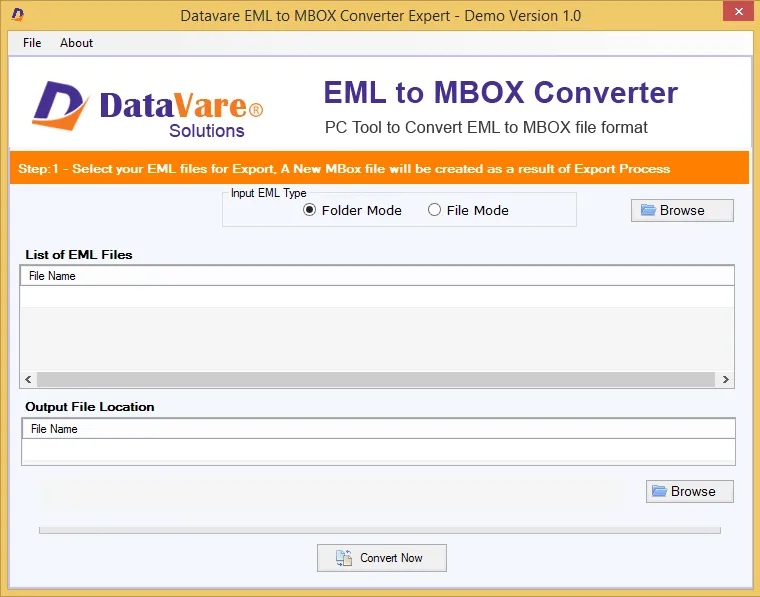
3. Select the MBOX file format as the output.
4. Select the location where the file will be saved and then browse to that location.
5. Click Convert Now to Start the Migration
The end of it! Within minutes, you will have an MBOX file that is prepared for import.
How to Import MBOX into Thunderbird Email Client?
Following the acquisition of the MBOX file:
• To begin, launch Thunderbird.
• Select Settings by right-clicking on your email account using the mouse.
• Find the part that is labeled "Local Folders."
• Select Browse and then open the folder that contains the MBOX files that Thunderbird has stored.
• Paste the MBOX file that has been transformed here.
• Thunderbird should be restarted.
Your emails that were imported will now be visible in the Local Folders section.
Final Thoughts
One does not have to go through a laborious process in order to import EML folders in Thunderbird. Although manual approaches that make use of ImportExportTools NG are effective for more straightforward jobs, they are not the best choice for managing huge mailboxes. A solution that is dependable, quick, and accurate is provided by DataVare EML to MBOX Converter. This solution is particularly useful for professionals, organizations, or consumers that have substantial EML archives. Because of its user-friendly design, advanced functionality, and high-speed batch processing, it is the best solution for ensuring that your email transfer goes off without a hitch and without any mistakes.